AI Features for Jira Data Center – No Atlassian Cloud Required
Imagine this: after every customer meeting, structured Jira issues are created automatically. You just paste your notes into an AI, and it does the rest. Atlassian already offers that kind of magic in Jira Cloud: natural-language search, automatic summaries, and issue creation from unstructured text. But not everyone wants to move to the cloud, and many teams plan to keep using Jira Data Center through 2029. In this article, we show how to get many of the same benefits on-premises with Jira Server and your own AI stack: GDPR-compliant, resilient to Cloud Act exposure, and without data leaving your environment.
Nicolas Inden
Senior Consultant
Many of the features offered by Atlassian Intelligence can be replicated with fully local AI – GDPR-compliant, free from the Cloud Act, and with no data leaving your infrastructure.
What you’ll learn in this article
Problem: Atlassian's AI features for Jira are cloud-only—a non-starter under strict data privacy requirements.
Idea: Build the same capabilities yourself—fully local, with no data leaving your infrastructure.
Recipe: Jira Data Center + a local AI model via LM Studio + the open-source MCP server "mcp-atlassian" as the glue. Search, summarize, and create Jira issues in natural language through a chat interface.
Outlook: Extensible with GitLab/GitHub integrations. More setup effort, but fully privacy-compliant and free from vendor pricing lock-in.
Content
Inspired by the Digital Independence Day and its call for "recipes" for digital sovereignty, we share our own approaches to topics that matter to our customers – every first Sunday of the month.
The best way to discuss business requirements is still through direct conversation with your team and your customer. Important implementation details often come up in side comments or are only implied between the lines. That is a long way from the structured input forms Jira gives us for creating issues. In my day-to-day work, one workflow has been a real game changer: take notes and transcripts from calls or chat discussions, hand them to an AI, and let it turn them into well-written Jira issues – with sensible fields, descriptions, and structure.
Atlassian has recognized the same need and added several AI features to Jira Cloud to support exactly this:
Search issues in natural language, for example: "Which epics were delivered in the last release?" or "Which tickets have we already had on topic XYZ?"
Summarize information in useful ways, for example by distilling the key points from issue comments or creating a business-level summary of an epic and its related issues
Draft issue descriptions and stories from meeting notes
Break issues down into meaningful subtasks
and more
The ability to turn an unstructured discussion directly into structured issues saves a significant amount of time.
Note:
Atlassian is clearly moving toward the cloud – support for the on-premises product Jira Data Center only runs through March 2029. Still, not everyone wants to use Atlassian Cloud, and that includes both Jira itself and the AI features Atlassian provides in the cloud. Existing on-premises installations can continue running until official support ends in March 2029. This article is for exactly those environments and shows how they can benefit from similar AI capabilities.
Our goal is to use Jira in a way that is GDPR-compliant and protected from the Cloud Act, including the AI features mentioned above.
What you need
Here is what you need:
A self-hosted Jira Server or Jira Data Center instance
Access to an AI
An MCP server (mcp-atlassian) to connect the AI to Jira Server
A tool where the “discussion” between the user and the AI can happen
The Jira instance
For item 1, we assume you already have a working, licensed Jira Server or Jira Data Center instance running the current version 11. As of March 30, 2026, it is unfortunately no longer possible to obtain new licenses for either product. Even so, we expect that many projects will continue running on-premises until support ends in March 2029.
Choosing the right AI
Things get more interesting with item 2. Atlassian Cloud uses a mix of open-weight models and frontier models from OpenAI and Anthropic. That may still be GDPR-compliant. The real issue is the Cloud Act: because Atlassian internally uses AWS – and because OpenAI and Anthropic do as well – all data is subject to Cloud Act exposure. So we need an alternative.
In principle, there are two options: use an inference API operated by a European provider, or run inference locally on your own machine. European providers such as StackIt, IONOS, and Scaleway do offer pay-as-you-go inference APIs, but in some cases their selection of current high-performance models is still limited.
For this recipe, we focus on local models. We use LM Studio as both the inference engine and the chat tool. LM Studio is available for macOS, Linux, and Windows and can be downloaded from the linked site. Once it is installed successfully, the next step is to choose the right model. Once it’s installed successfully, the next step is choosing the right model.
Note:
Local inference requires hardware with a large amount of fast memory. That can mean a GPU with enough VRAM, or a system with a strong integrated GPU and enough shared RAM, such as Apple Silicon or AMD Strix Halo systems. Hardware requirements scale with the number of parameters in the model you choose. A very rough rule of thumb is 1 GB of RAM per 1 billion parameters. So gpt-oss:20b should have 20 GB of (V)RAM available, although in practice a bit less is often enough.
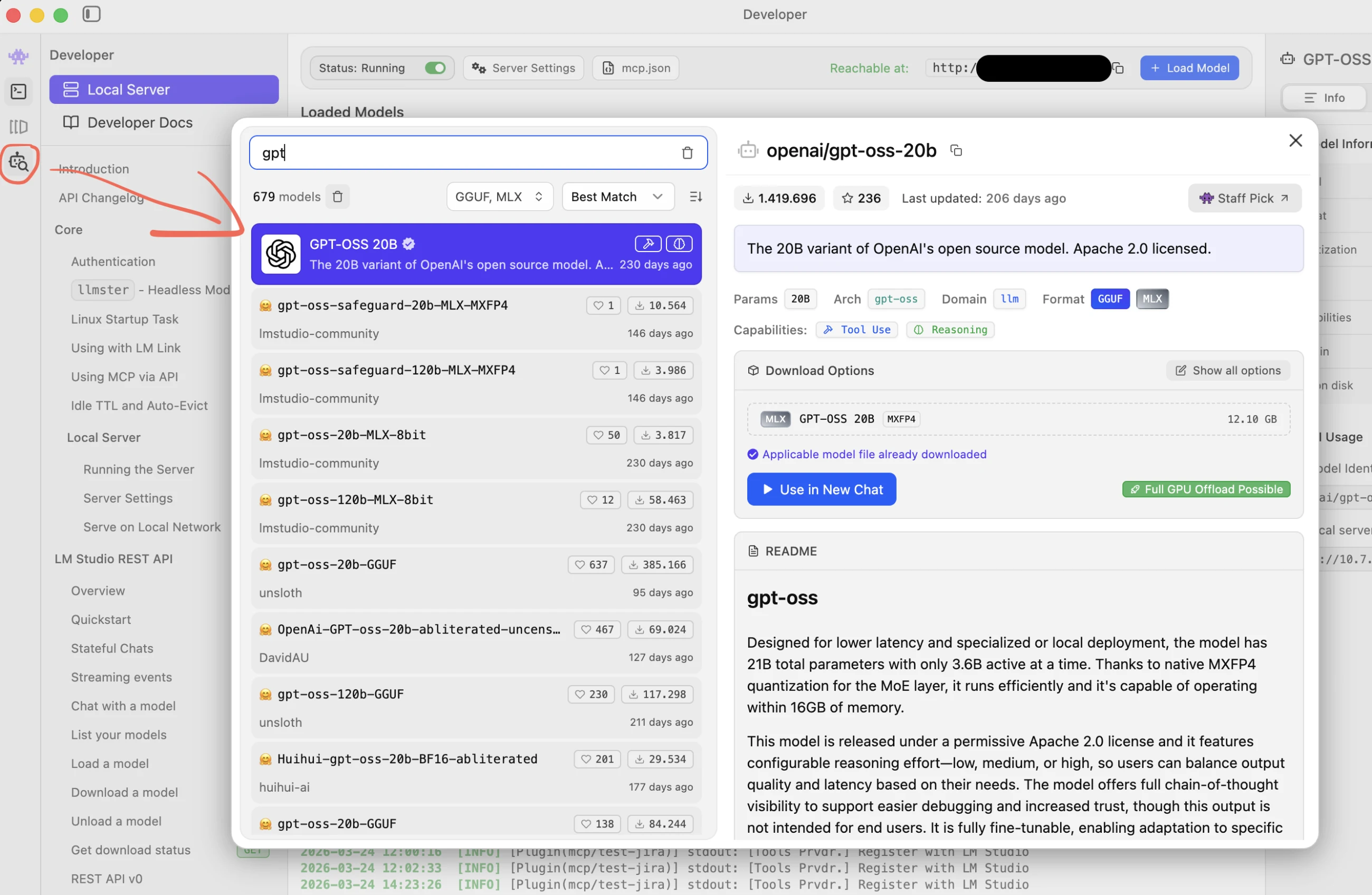
For our use case, we need a model that is designed for tool use. In practice, gpt-oss:20b has proven to be a good compromise between capability, speed, and hardware requirements – an open-source model with strong tool-use support. If you have a bit more RAM available, start with qwen3.5:35b-a3b. You can search for and download both models in LM Studio under Model Search.
Selecting the desired LLM
It is definitely worth experimenting here. There is now a huge range of models available, and each comes with its own strengths and weaknesses. But the two models mentioned above are a solid place to start.
Teaching the AI to talk to Jira (MCP)
At this point, you can already chat with the local AI inside LM Studio. All of the AI’s knowledge is contained in its trained parameters—the so-called "weights." There is still no connection to the outside world, though. To achieve our goal, the AI still needs the ability to talk to our application: Jira. That is what we address here in item 3.
To do that, we use a suitable MCP server. We chose mcp-atlassian. mcp-atlassian is an open-source project, it is actively maintained, and it has already collected plenty of stars on GitHub. Our own tests with mcp-atlassian were successful as well.
To use mcp-atlassian without getting into the details of Python and virtual environments, we install a tool called uv. It handles fetching and installing the current version of mcp-atlassian for us. You can find all the details here.
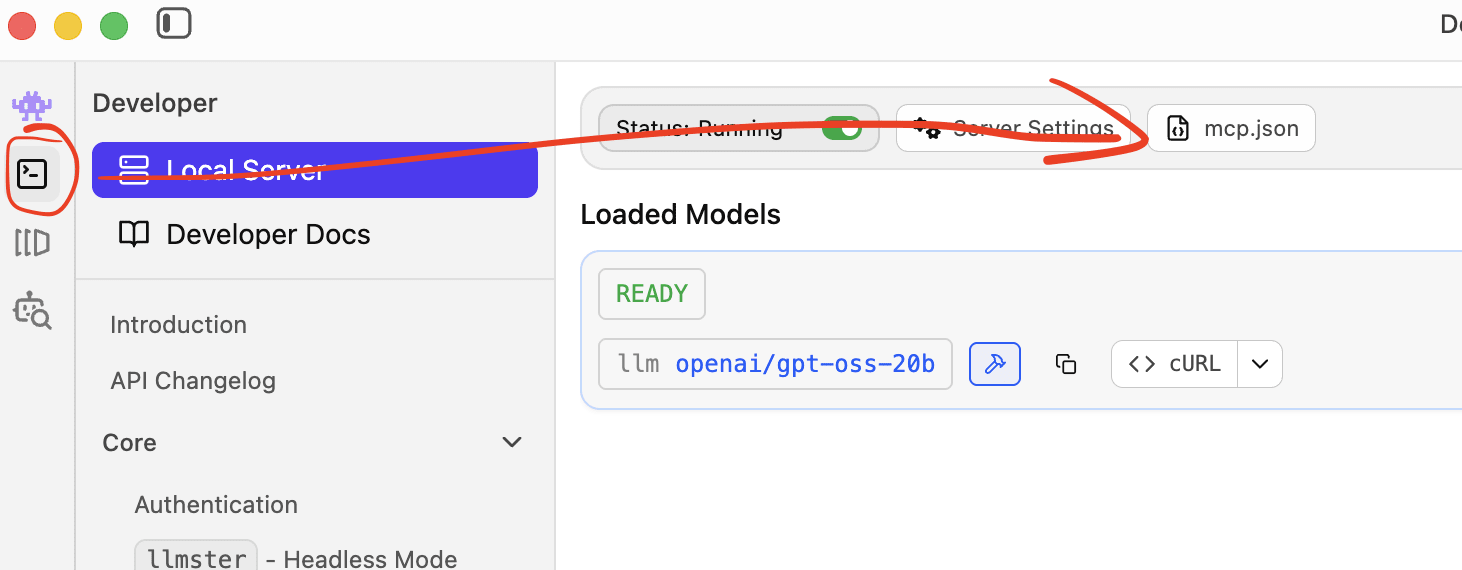
To let LM Studio use mcp-atlassian, we need to add it to the MCP server configuration. You can do that here:
Adding the MCP server
A mcp.json file that can connect to a Jira Server started locally with the compose.yml shown above looks like this:
We configure LM Studio so it can launch the MCP server with uvx mcp-atlassian, and we pass the required environment variables for the URL and the personal access token (PAT).
You can get the PAT in your Jira profile. There, you can create a PAT for the MCP server to use. Of course, that also means that any action you perform in Jira through MCP will be associated with your user account.
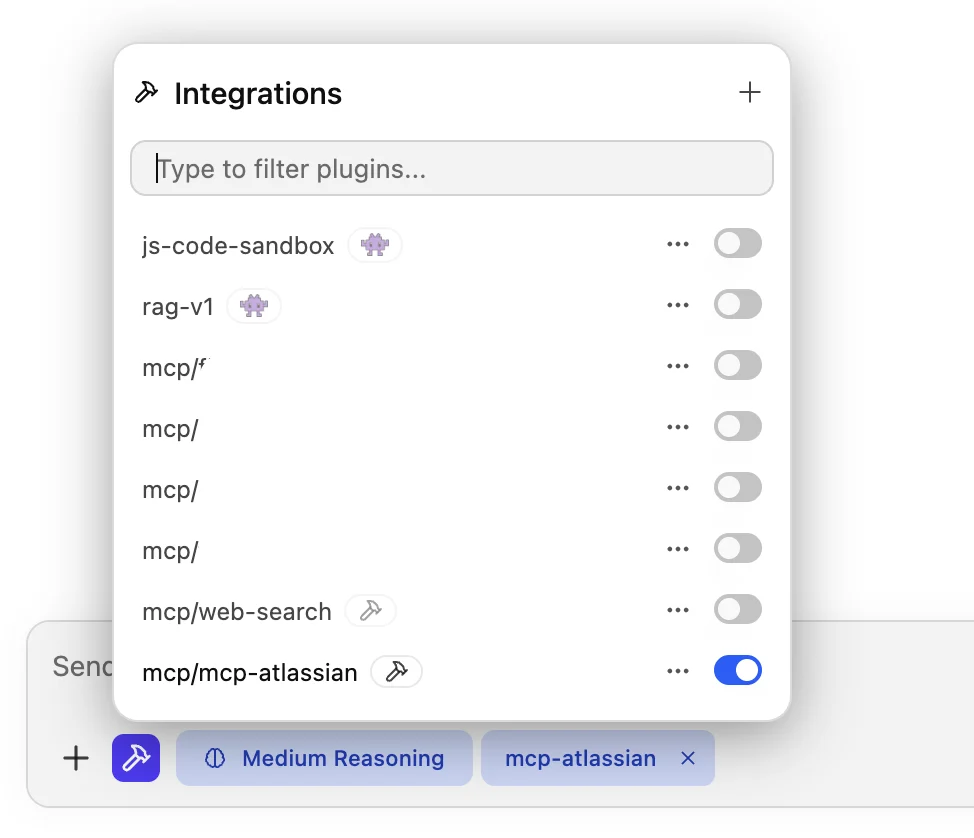
As a final step, start a new chat and select mcp-atlassian. From that point on, the AI can use the tools provided by mcp-atlassian and access your Jira instance.
Enabling the MCP server
That’s the hardest part done – now it’s time for fine-tuning.
The chat
This is where item 4 gets really fun. LM Studio is not just our AI inference engine, but also our chat tool – the place where user interaction happens. In an LM Studio chat with mcp-atlassian enabled, we can talk about anything that exists in our Jira project. The AI uses tools on its own to find issues on specific topics, from certain time periods, or created by particular users. It can also create issues. Here are a few prompts for inspiration:
Example prompts:
Which epics were addressed in the last release?
Create business-facing release notes from this information
Which open bugs are assigned to me?
…
To test creating issues, prompts like the following are also useful:
Example prompt:
Make up a feature and create an epic for it along with three related stories
If you are already thinking one step ahead: with additional MCP servers, you can also connect other systems such as GitLab or GitHub. More on that in the conclusion.
That said, a few minor issues become obvious pretty quickly – at least in my experience:
every now and then there are problems with umlauts in description texts
the AI likes to use Markdown in issue descriptions, which Jira does not handle well
…
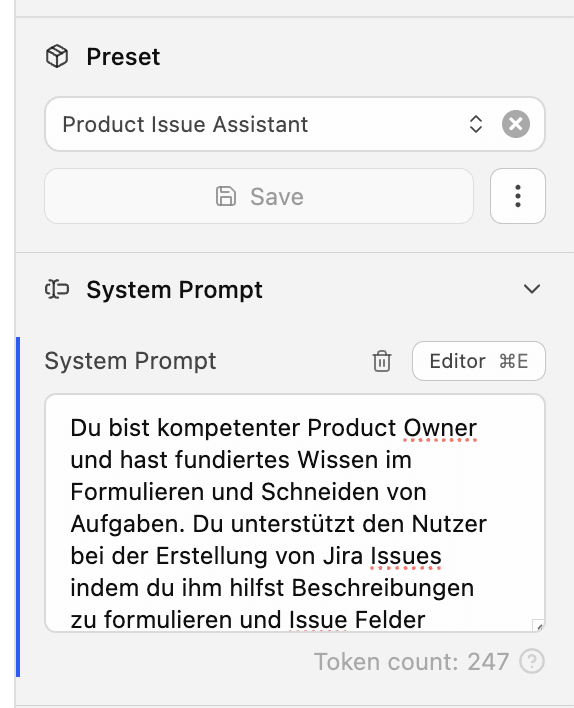
Fortunately, there is a (non-deterministic) fix for that too: adjust the system prompt. This is where you can shape the AI’s behavior effectively—for example, by telling it to always show a preview and ask for confirmation before it actually creates an issue in Jira.
Finetuning im System-Prompt
My current system prompt looks like this:
You are a skilled product owner with strong expertise in writing and slicing work items. You support the user in creating Jira issues by helping formulate descriptions and set issue fields correctly. When the input makes it possible, suggest sensible values for these fields:
Type
Components
Please answer in German.
When you create issues, show a preview and ask for confirmation before you actually create the issue with a tool.
Use umlauts directly (ä, ö, ü, ß) and standard quotation marks (" or '').
You work with Jira. When you create or edit issues in Jira using tools, use only Jira Wiki Markup in Jira descriptions with the following syntax: h1. for level-1 headings, h2. for level-2 headings, h3. for level-3 headings. Never use Markdown (#, ##) or other syntax such as =Text= or ====. Use - for lists.
Conclusion
A large share of the features offered by Atlassian Intelligence can be implemented successfully using only local AI. The scenario described here can even be taken further: if we connect not only Jira, but also the version control system used in the project – GitLab, GitHub, and others – through MCP, then the AI has all the information it needs to generate fine-grained release notes automatically. Of course, this requires some setup work and is not as out-of-the-box as the vendor solution. But it is absolutely practical and makes it possible to use AI even in highly privacy-sensitive environments. On top of that, this approach gives us a bit more protection from arbitrary price increases in cloud subscription models.
Nicolas Inden
Senior Consultant
Nicolas Inden
Senior Consultant
Nicolas is a Senior Consultant at INNOQ, bridging business and technology. He specializes in privacy-friendly AI integration and sovereign infrastructure, helping organizations run digital solutions independently and sustainably.
Nicolas Inden
Nicolas is a Senior Consultant at INNOQ, bridging business and technology. He specializes in privacy-friendly AI integration and sovereign infrastructure, helping organizations run digital solutions independently and sustainably.
Sovereignty Review
You know your dependencies. We help you assess what they mean.